It needs captions
Live Frames and Study Notes are built from the transcript. Captions uploaded by the creator or auto-generated by YouTube both work; a video with none can’t be analyzed.


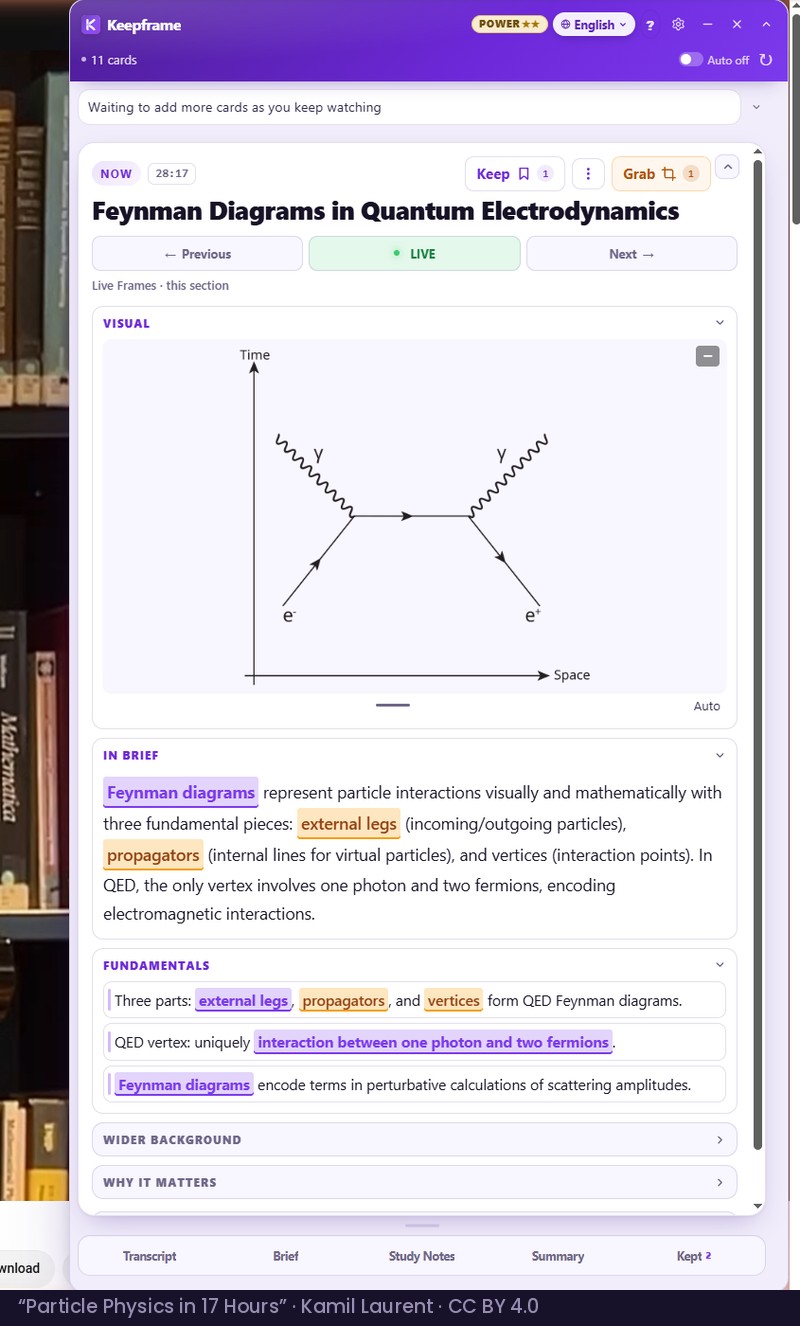
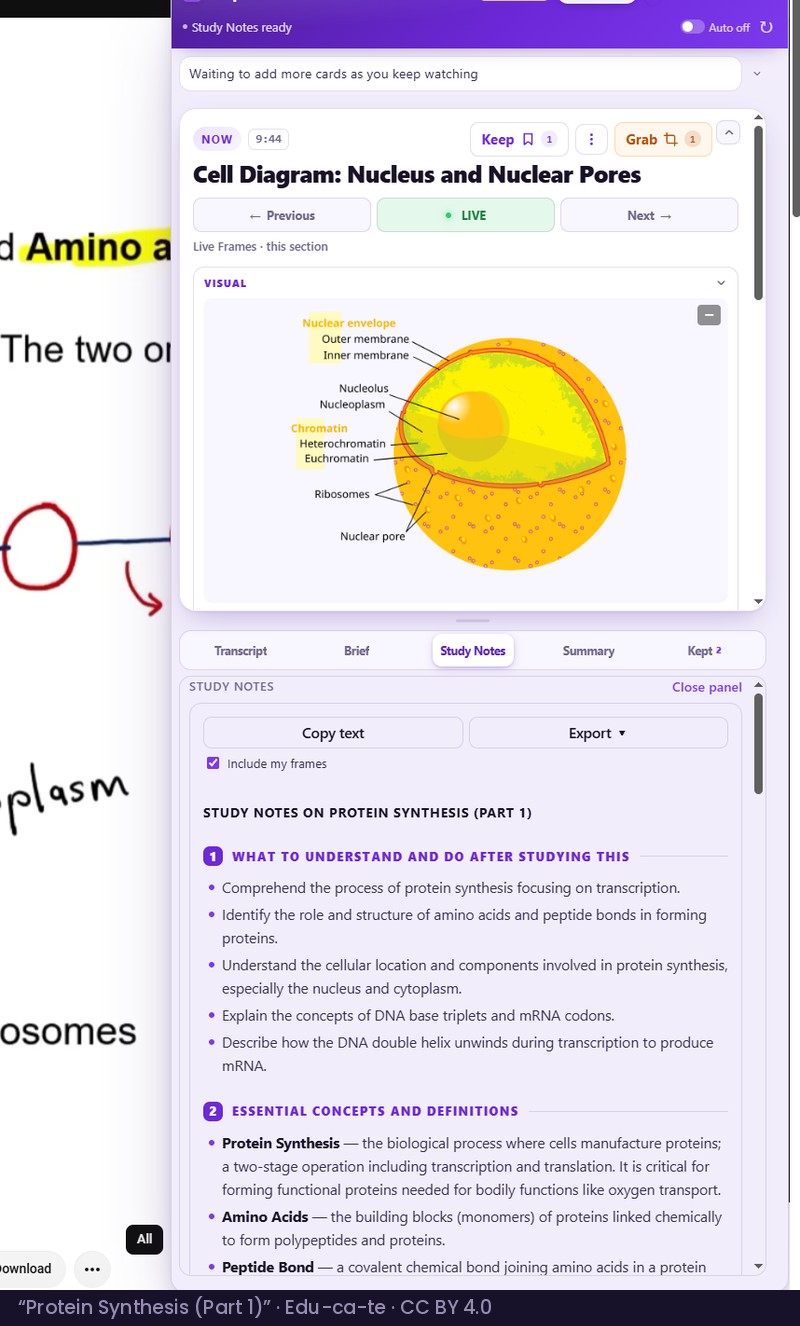
Open a lecture on YouTube and Keepframe works beside the player. Live Frames explain each idea at the moment it comes up. Press Keep on the ones worth returning to. The timestamped transcript takes you back to any minute. When you are ready, Study Notes turn the whole video into material you can export and revise from.
For desktop Chrome. Works on YouTube videos with captions.
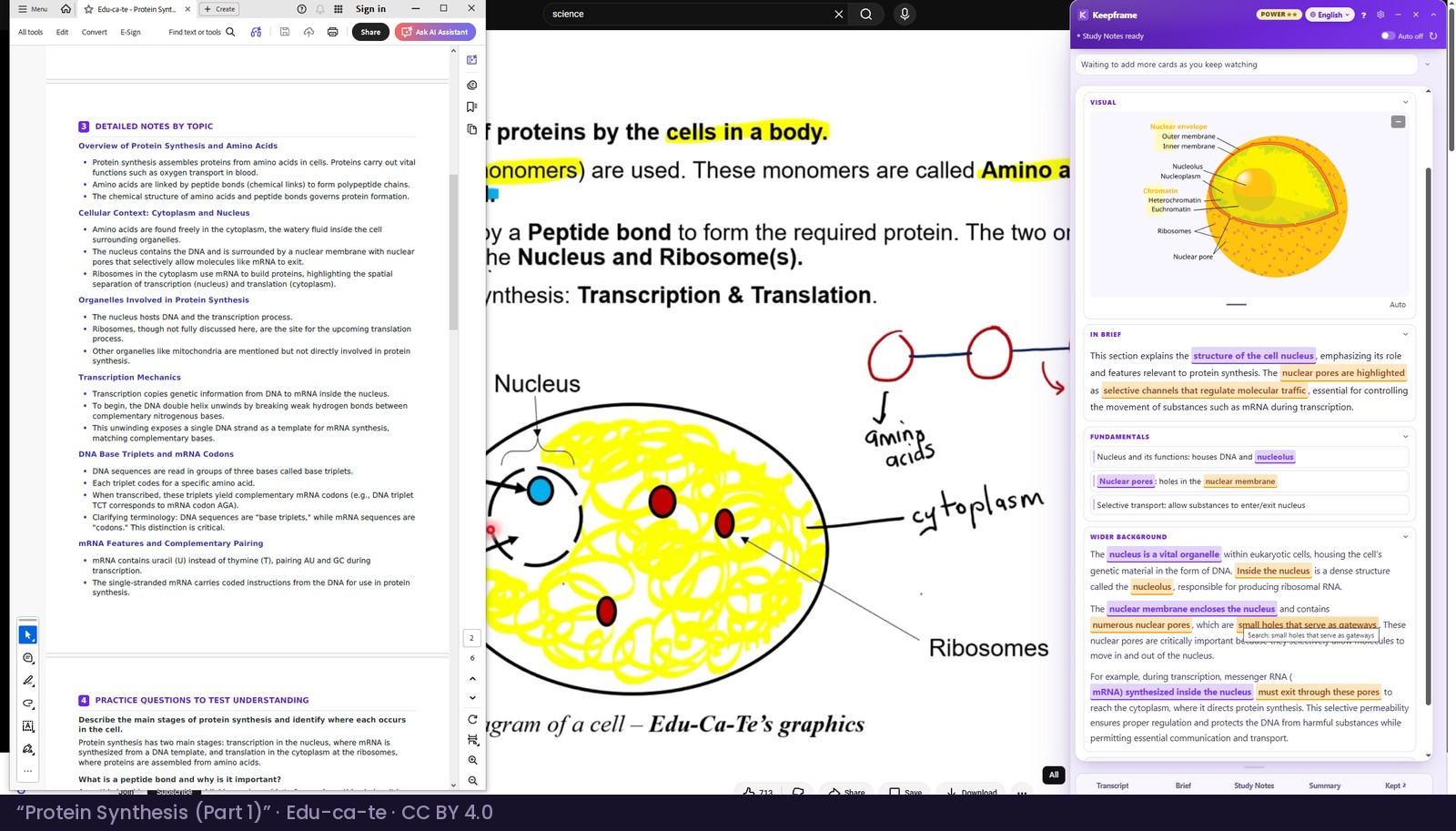
No copying and pasting between tabs. Everything happens in one panel, next to the video you are already watching.
Any YouTube video with captions. Choose the language you want to study in before you analyze — 95 are available.
The transcript arrives together with your first Live Frames. Every line jumps back to its minute.
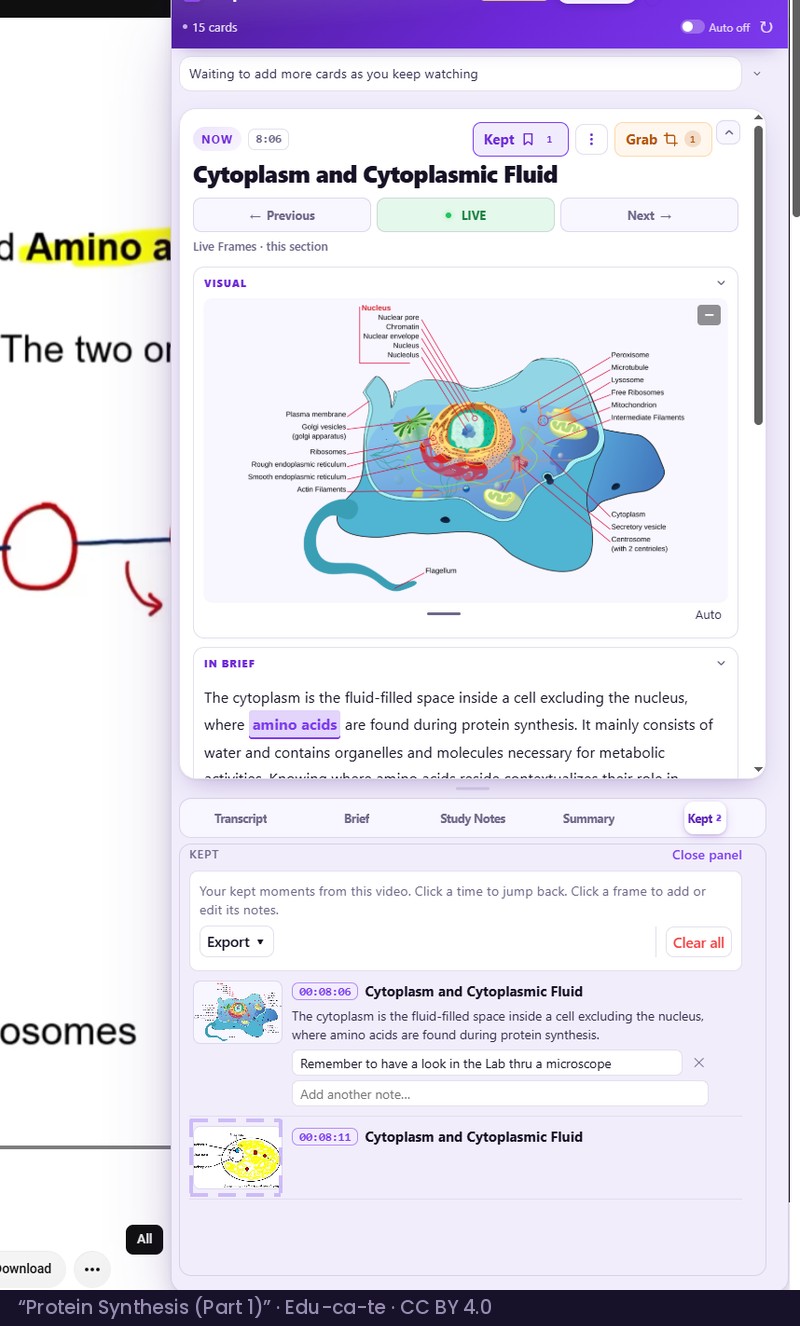
Each card explains the idea on screen right now, in several depths, with key terms highlighted. Open only the part you need.
Press Keep and add your own note. Grab a diagram or formula off the screen, with the minute it came from.
Structured notes for revision and recall, written in the panel. Export them as Word or PDF, with links back to the video.
Real lectures, captured from the panel as it runs. Open one to see the whole screen it came from.
Live Frames and Study Notes are built from the transcript. Captions uploaded by the creator or auto-generated by YouTube both work; a video with none can’t be analyzed.
The transcript stays in the language of the video; your cards and notes follow the output language you choose. Choose it before you analyze — changing it afterwards means analyzing the video again.
Study Notes stay open in the panel until you reload the page or move to another video. Kept Frames, your notes and Snapshots are stored in your browser.
Free includes up to 10 video analyses a month. Creating and exporting documents is included for your first 7 days on Free; after that it is part of Pro or Power. See plans.
It works on YouTube videos that have captions, uploaded by the creator or auto-generated by YouTube. Live Frames and Study Notes are built from the transcript, so a video without captions can’t be analyzed.
Yes. Choose from 95 output languages before you analyze. Your Live Frames and Study Notes come out in that language; the transcript stays in the language of the video.
Study Notes stay open in the panel until you reload the page or move to another video, so export the ones you want to keep. Kept Frames, your notes and Snapshots are stored in your browser.
Free includes up to 10 video analyses a month. Creating and exporting documents such as Study Notes is included for your first 7 days on Free; after that it is part of Pro or Power.
All questions about Keepframe →
How Keepframe compares with YouTube summarizers →
Free to install, no card required. Your first 7 days include every document type, within your monthly allowance.
Add to Chrome — FreeFor desktop Chrome. Works on YouTube videos with captions.
Keep it in frame.