Keepframe
Your AI companion for YouTube

Turn long videos into usable knowledge you keep.

Understand faster. Remember more. Export clean study materials. Keepframe adds Live Frames — concept cards that appear beside the video, close to the moment the idea is explained — plus the transcript and study documents, in a single clean sidebar.

For desktop Chrome. Works on YouTube videos with captions.

youtube.com/watch
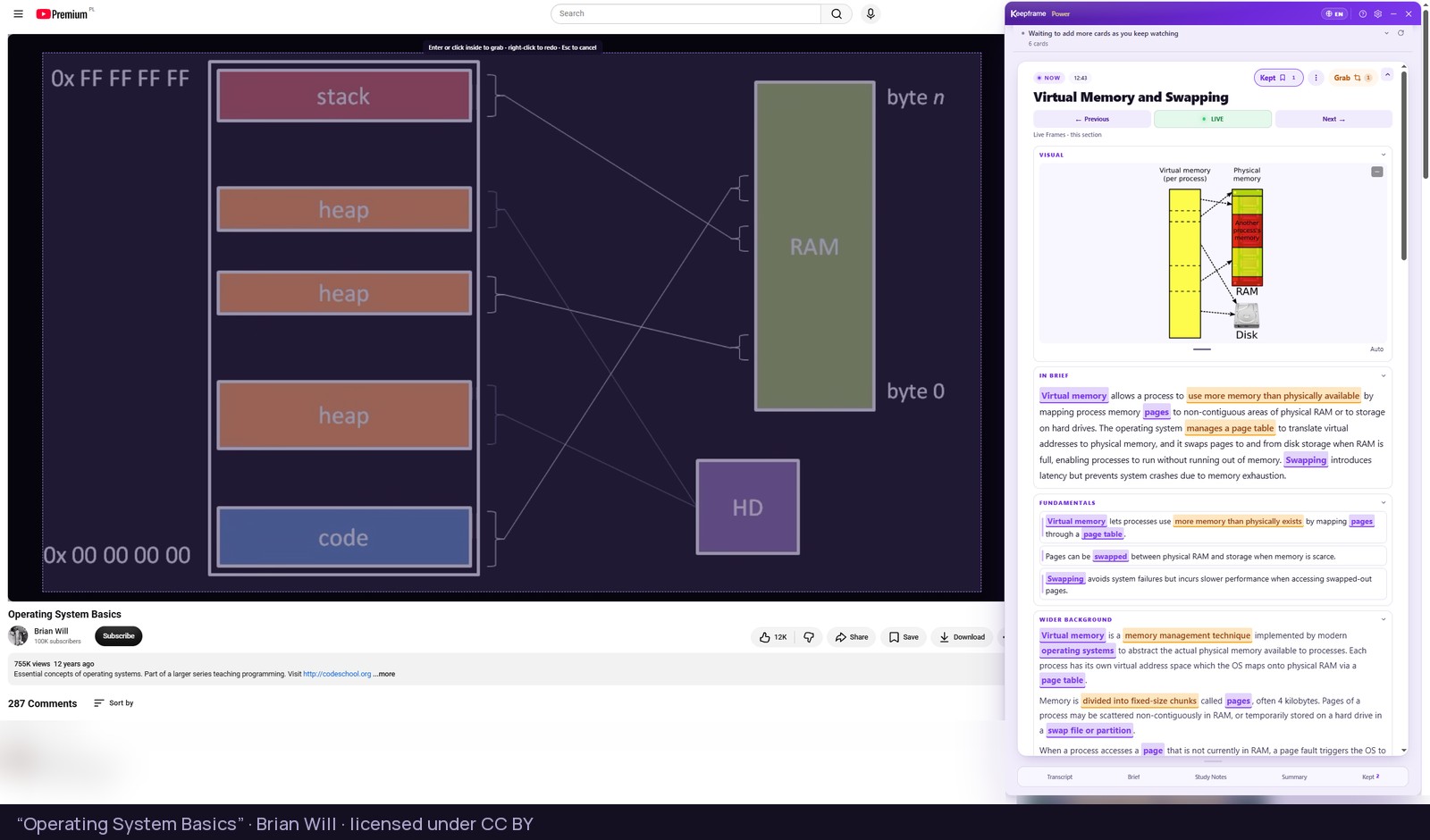
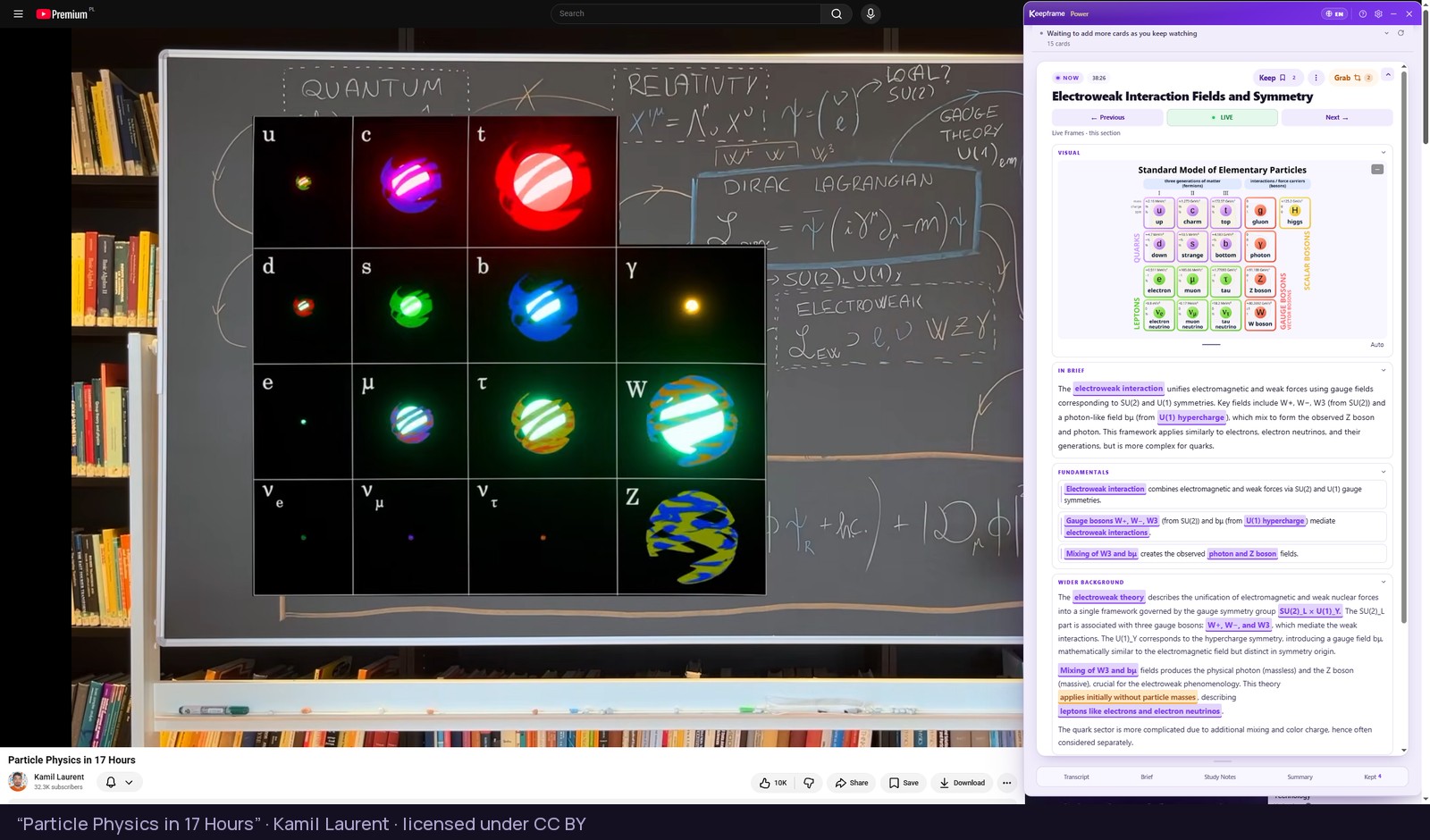
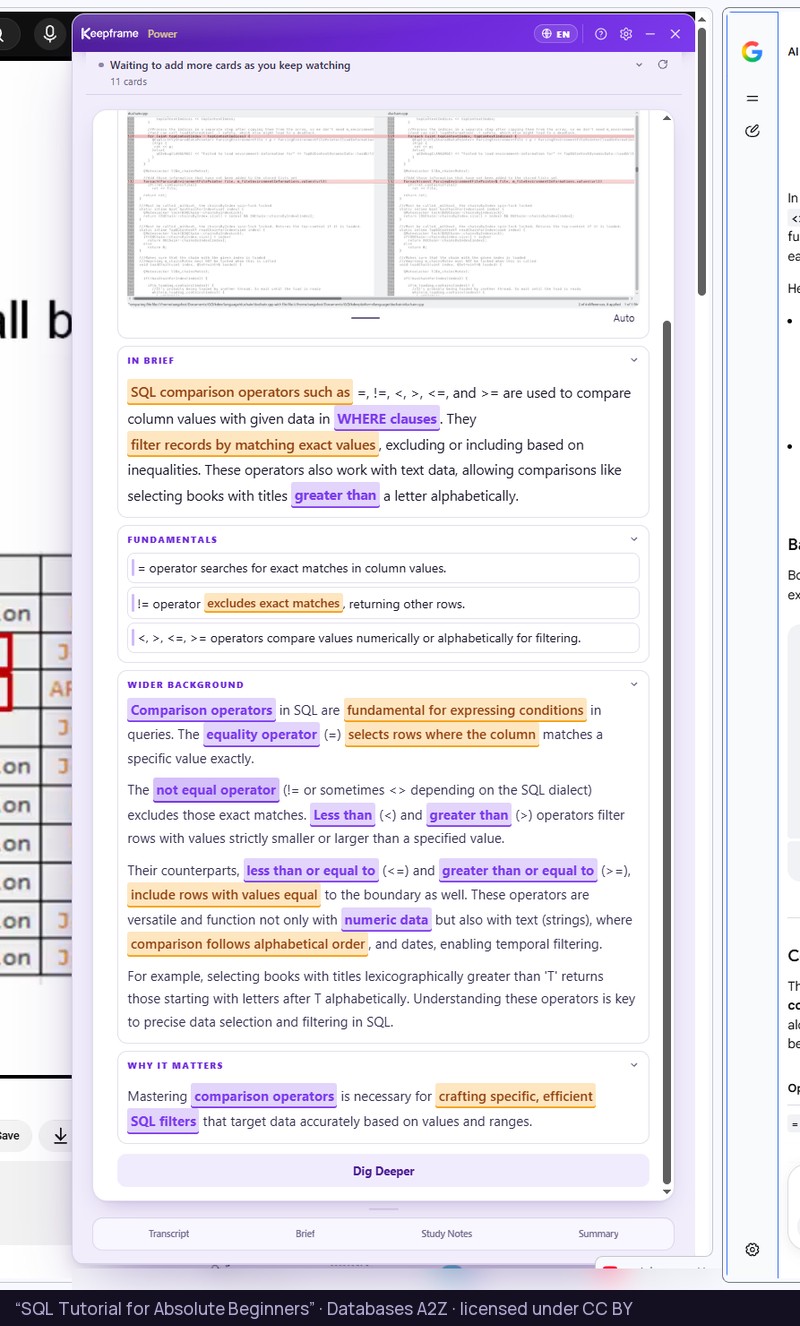
The Keepframe panel beside a playing YouTube video, showing a concept card with an image and highlighted key phrases
Desktop Chrome Works with captions Multilingual output No account needed
The problem

The best knowledge is locked inside long videos.

Lectures, podcasts and deep-dives hold real insight — but watched passively, the key concepts fade fast.

Everyone hits the same friction: great content, no structure to study from.

  • Key ideas slip by as you watch — and rewatching to find one wastes time you don't have.
  • A one-line summary is too thin to study or revise from.
  • Notes end up scattered across apps — or never written.
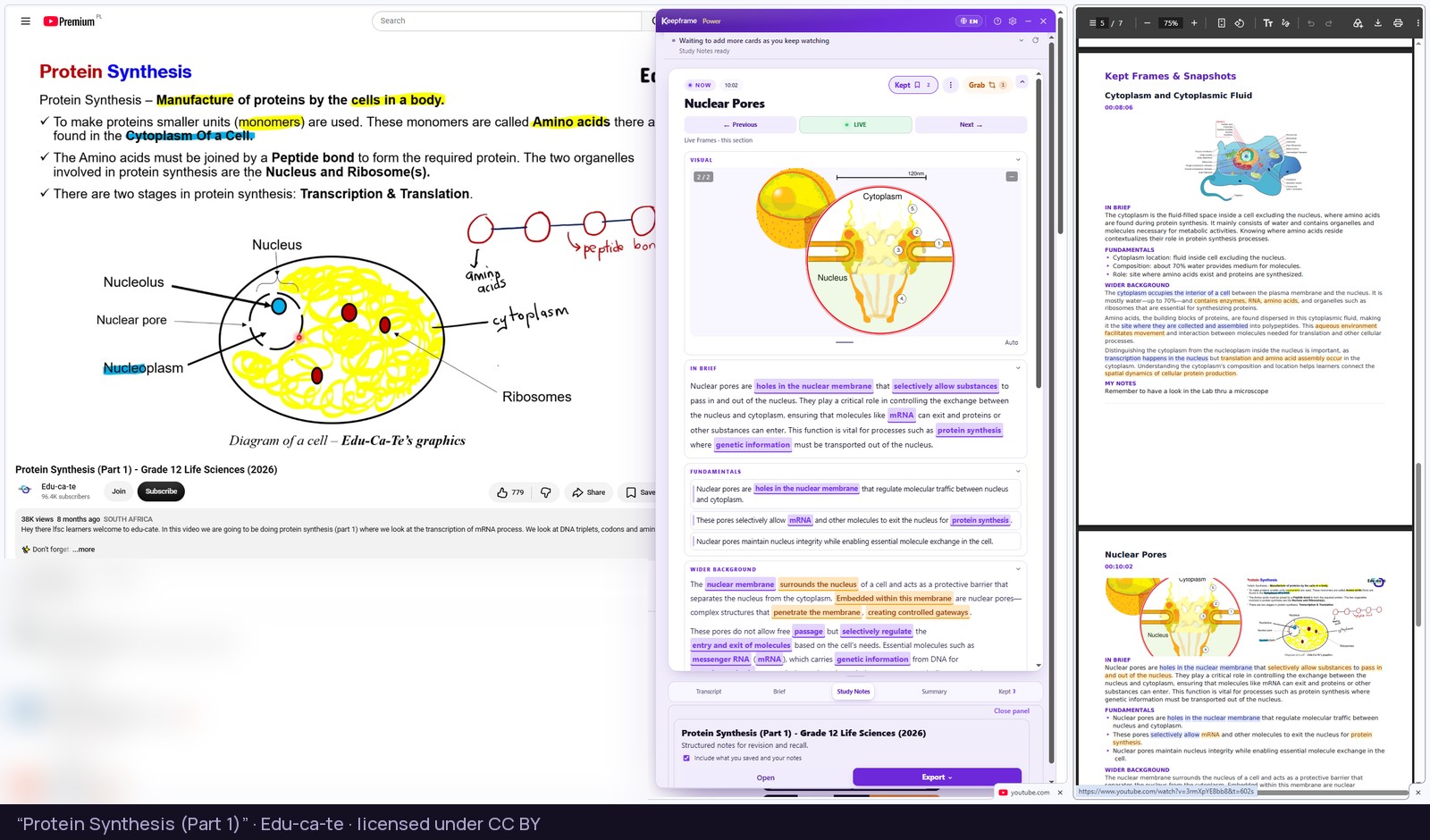
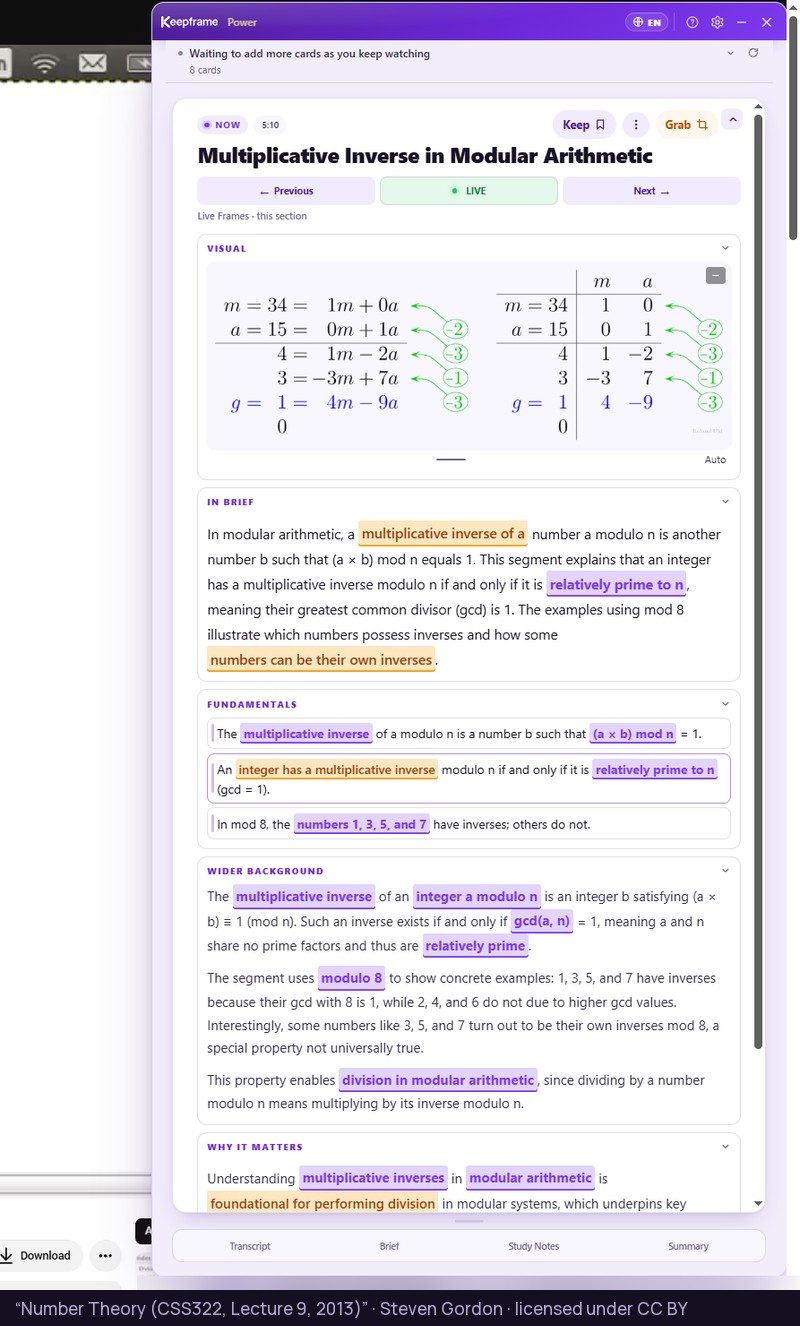
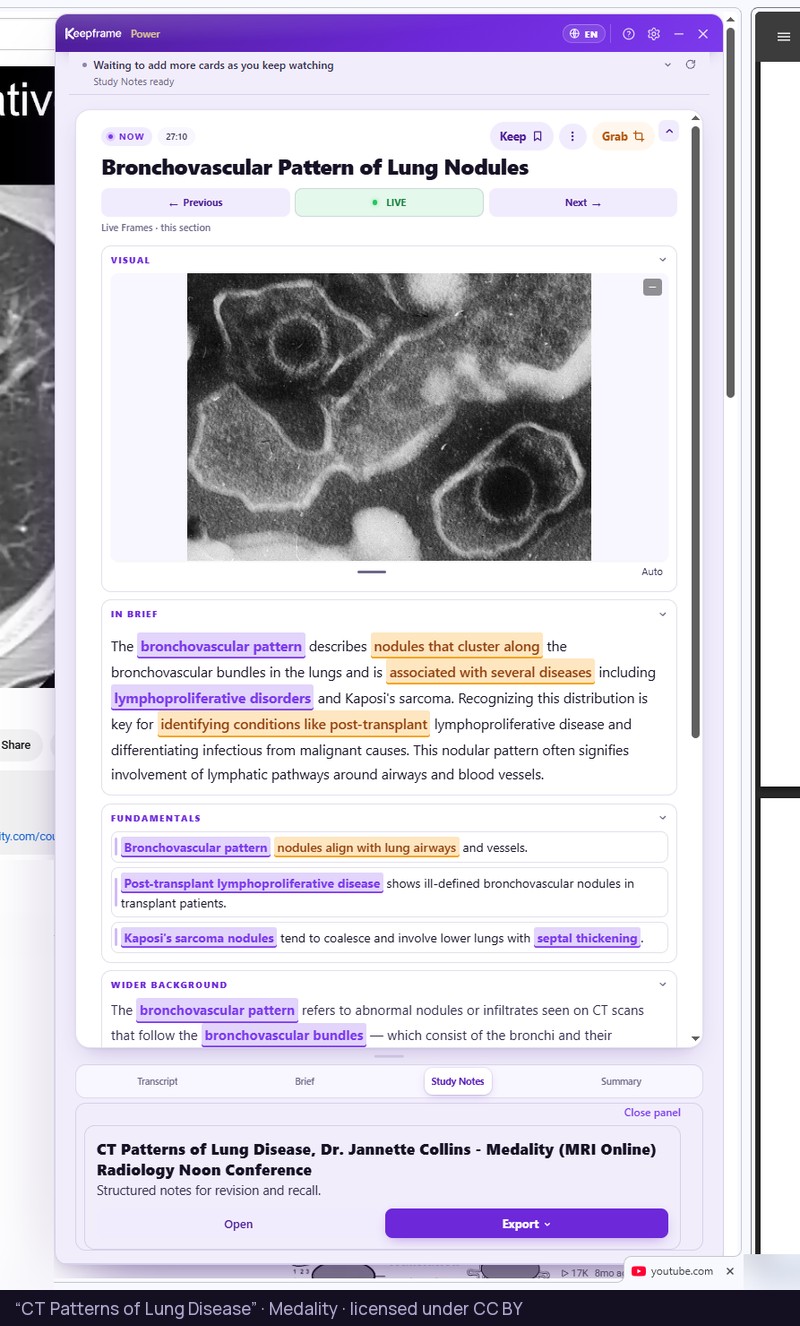
The Keepframe panel beside a lecture, showing a concept card and the Study Notes generated from it
Live Frames as you watch — and the finished Study Notes they become, as shown here.
The solution

From passive watching to active learning.

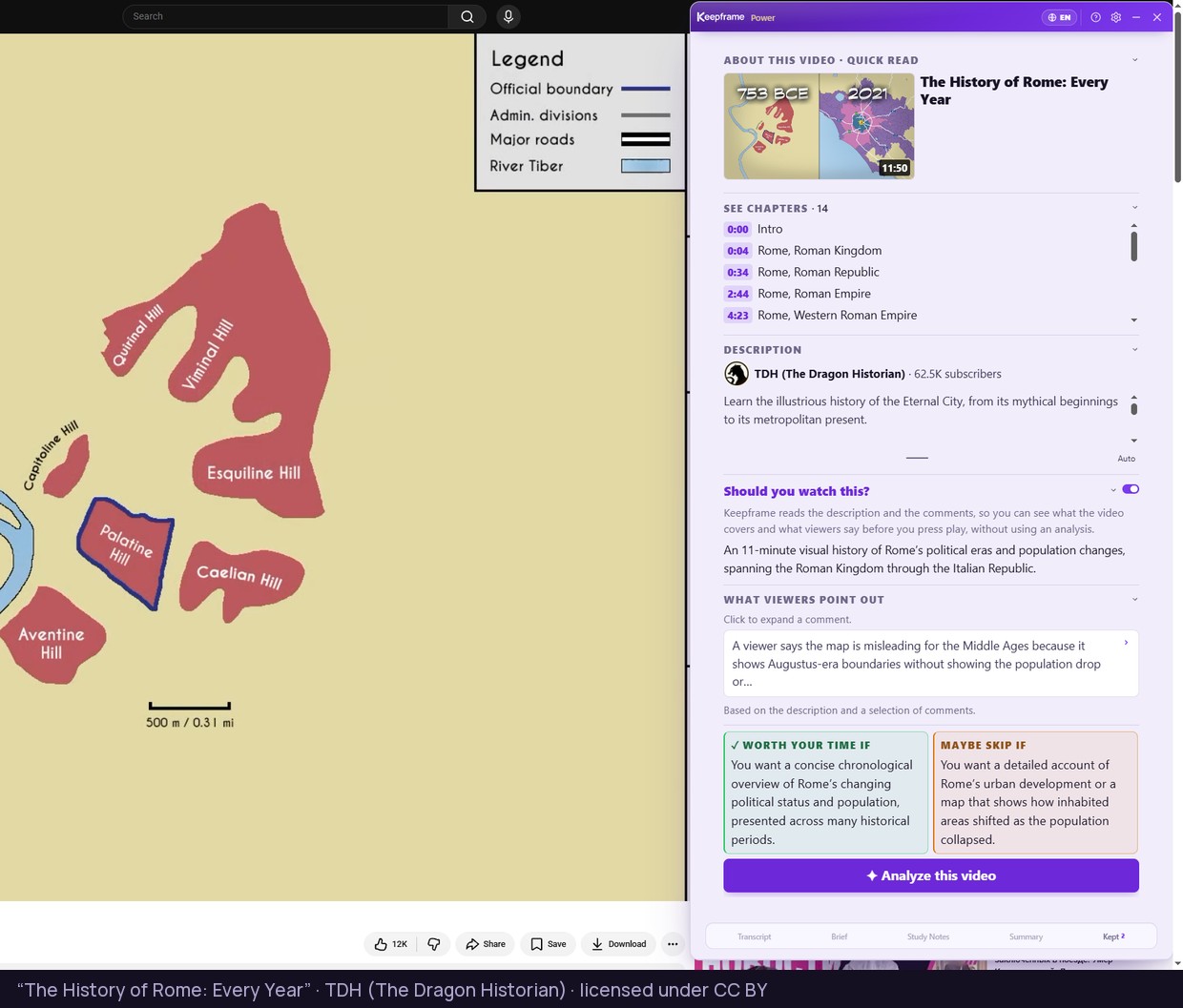
Keepframe adds a clean learning panel right next to the YouTube player. Live Frames arrive as you watch — then, whenever you want, open the transcript, AI Brief, Study Notes or Full Summary and export them.

  • Live Frames follow the video moment as it plays.
  • Press Keep to save the ones that matter — and add your own note.
  • One panel holds the transcript and all three documents.
  • Export clean study documents you actually keep.
Features

Made for learning, not just for skimming.

Not just a summary. A complete learning workflow that lives where you already watch.

Live Frames

Key ideas appear beside the video, close to the moment they are explained — built around where you are watching, not from the top of the video. Move through them with Previous, LIVE and Next.

Kept Frames

Press Keep on the ones worth returning to and add your own note. Everything you keep sits in the Kept tab and stays there.

Timestamped Transcript

A clean, clickable transcript. Every line carries the minute it came from, so you can jump straight back to it.

AI Brief

A short executive overview: core thesis, key takeaways and the points worth revisiting first.

Study Notes

Structured, organized notes built for revision and exam prep — not a wall of text.

Full Summary

The complete written walkthrough when you need the whole picture, section by section.

Export

Documents and your Kept Frames export in a click — timestamps stay clickable, straight back to the video. The transcript exports too.

Dig deeper

Open any concept in a fresh search tab, without losing your place in the video.

Multilingual output

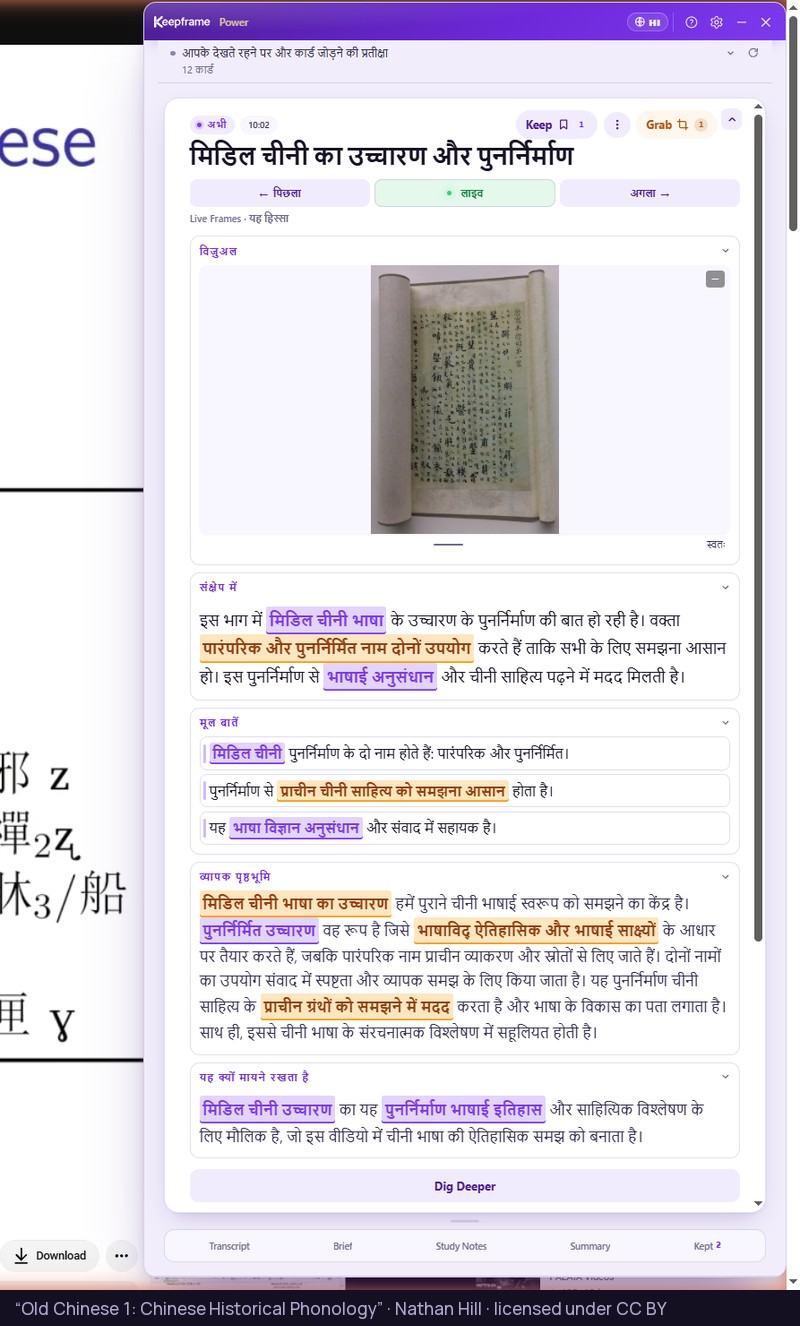
Watch in one language. Get your cards and documents in another — 95 languages to choose from.

How it works

Learning, in five steps.

Install the extension

Add Keepframe to desktop Chrome in a couple of clicks.

Open a video and pick your language

Play any YouTube video that has captions, then choose the language you want your materials in — before you analyze.

Press Analyze this video

Nothing starts on its own. Live Frames then arrive and follow the video as it plays.

Keep what matters

Save the Live Frames worth returning to and add your own notes.

Generate and export

Open the AI Brief, Study Notes or Full Summary, then export them.

What a Live Frame holds

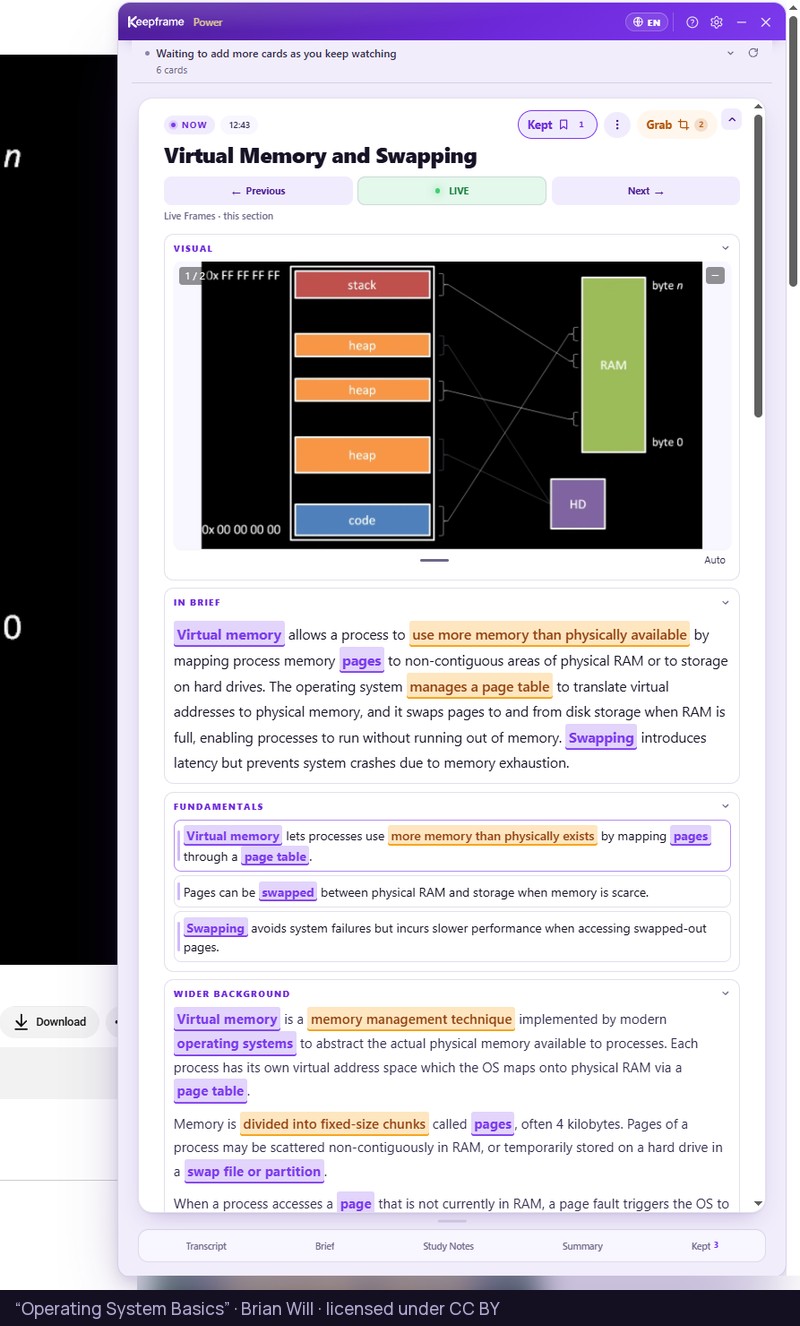
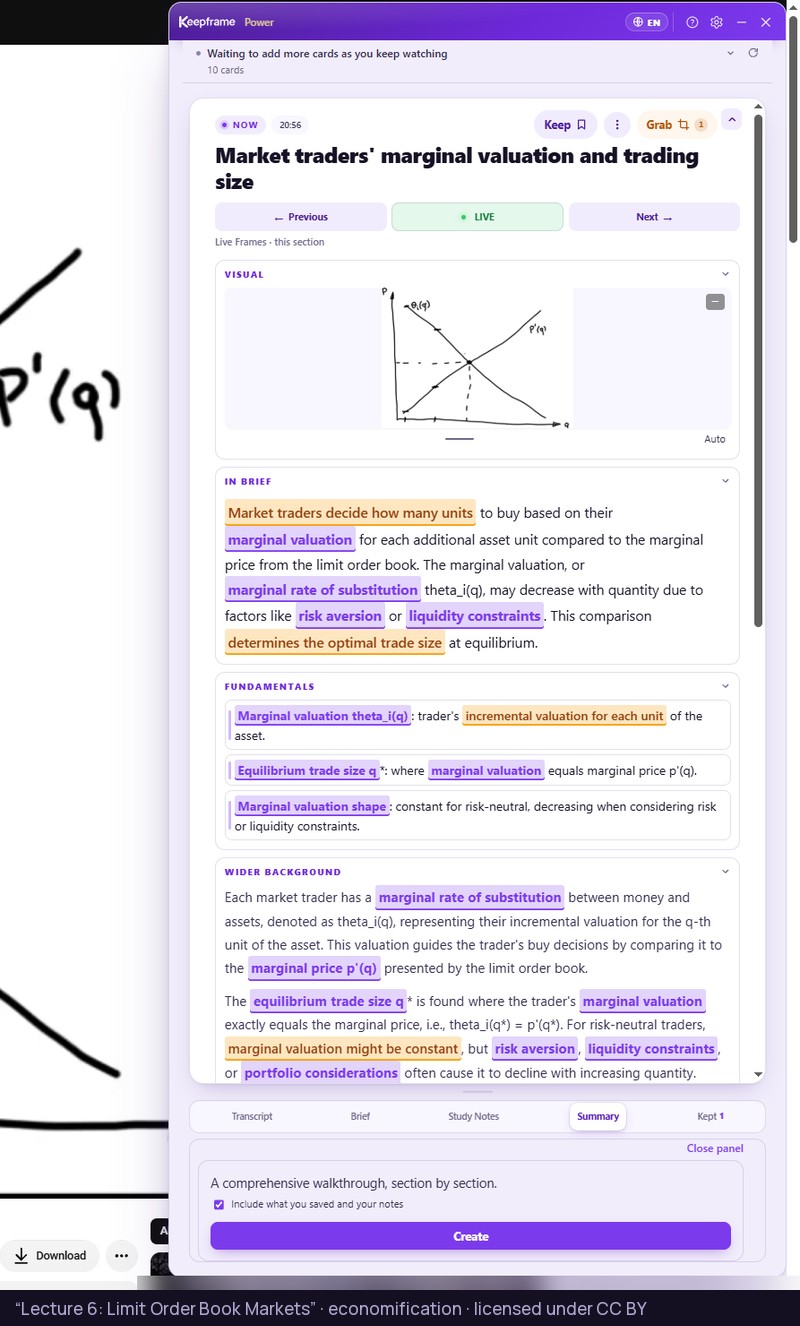
Five sections you can fold away — VISUAL, IN BRIEF, FUNDAMENTALS, WIDER BACKGROUND and WHY IT MATTERS — with the key phrases highlighted in the text and Dig deeper at the bottom. One card, several depths: open only the part you need.

See it in action

Real videos, real study materials.

From university lectures to interviews and policy talks — the same clean panel, with your materials in the language you choose.

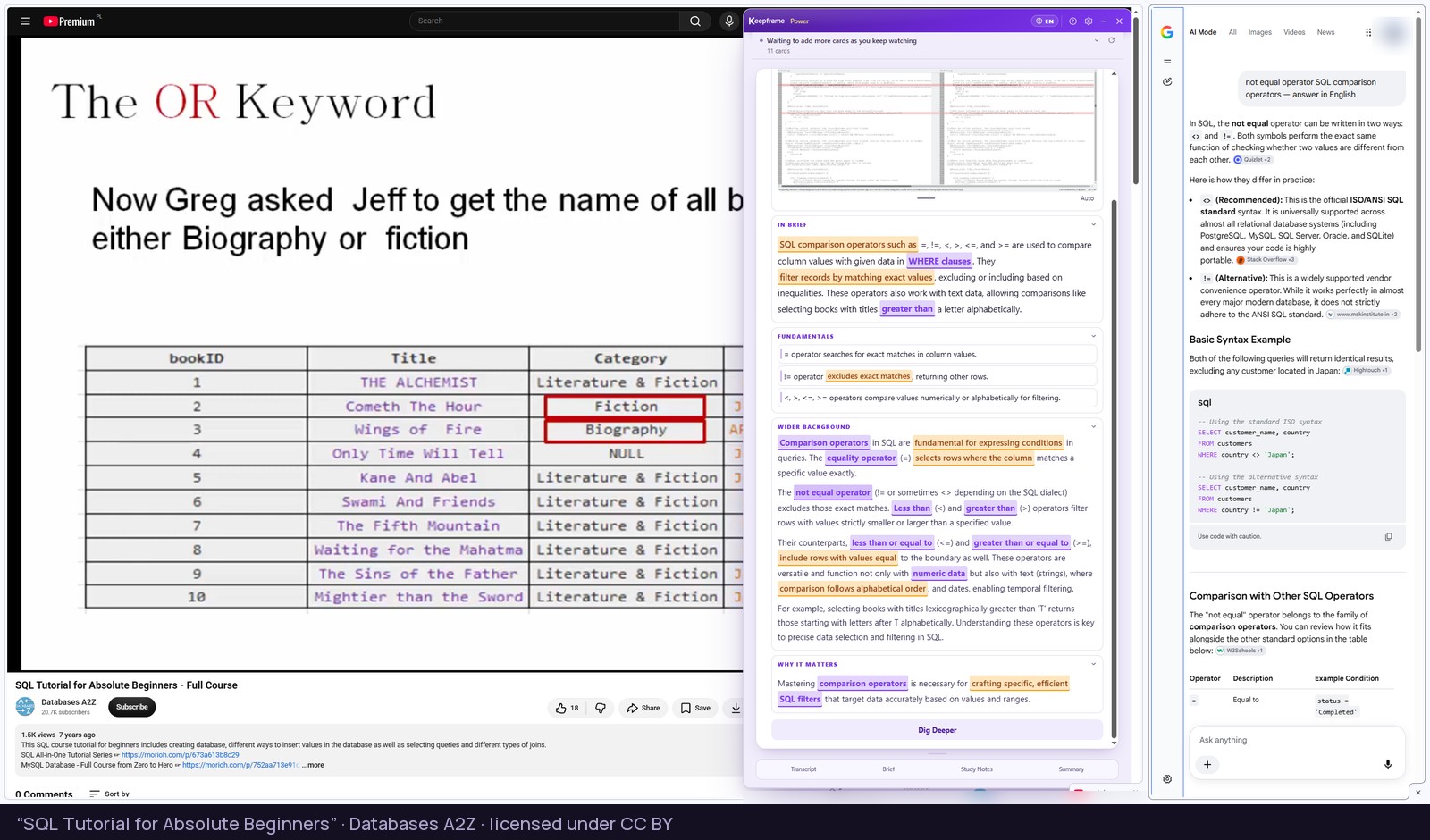
A Keepframe concept opened as a Wikipedia article in a separate browser tab, shown here side by side with the video
Dig deeper — the source opens in its own tab. Your video keeps playing.
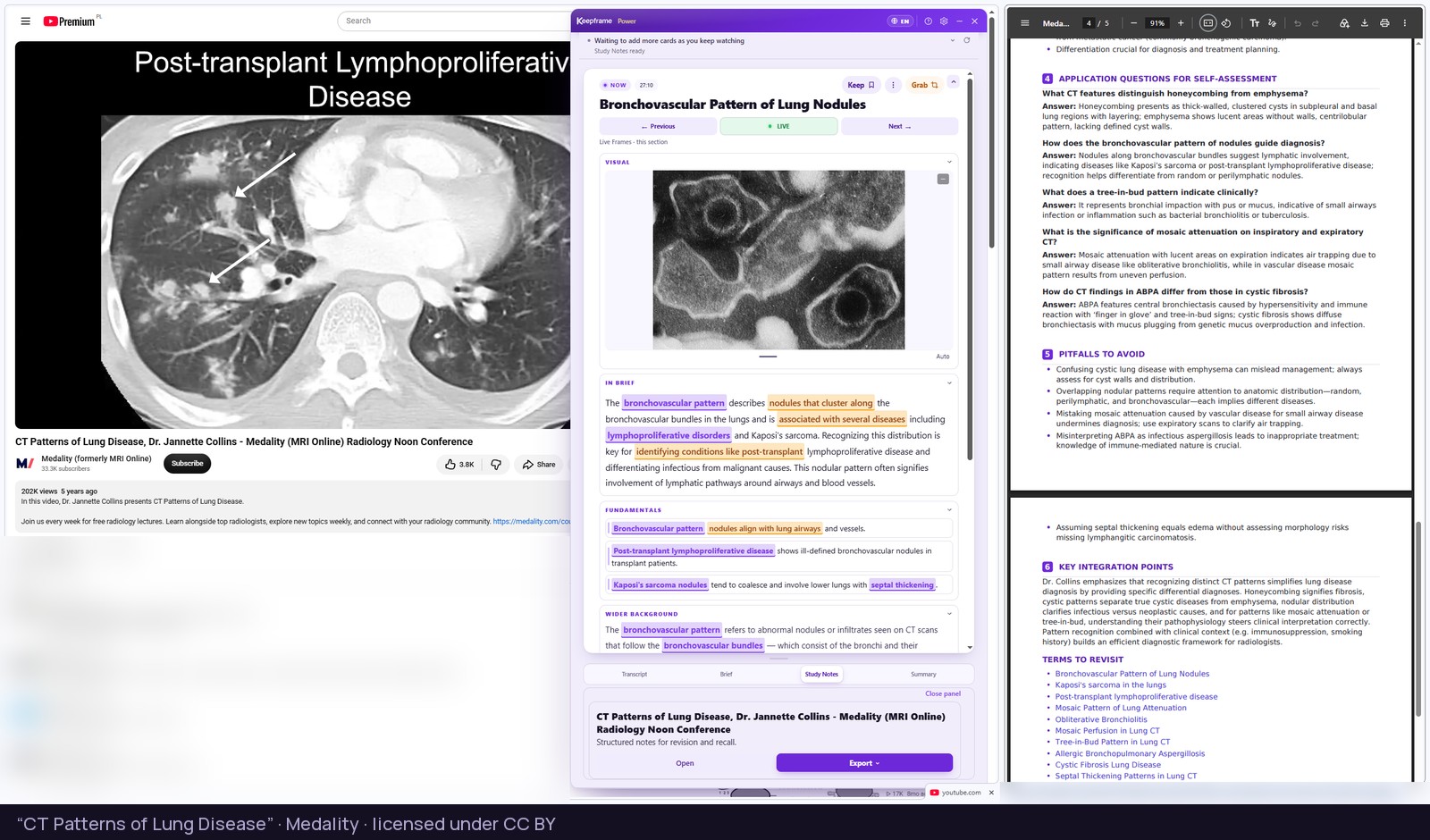
Keepframe Study Notes exported to a document with clickable timestamps, open beside the lecture they were generated from
Study Notes exported to a document — every timestamp links back to that moment in the video.
Keepframe explaining a Spanish lesson in the viewer's own language, with the Spanish phrases kept in Spanish
A language lesson explained in your language — the phrases being taught stay in Spanish.
Where it earns its place

Three situations where a long video is worth keeping.

Courses and lectures

Work through the material once, keep the moments you will revise from, and leave with Study Notes instead of a blank page.

Research and expert interviews

Come back to the argument, the source and the exact passage — with a transcript that carries the minute each line came from.

Professional learning

Turn webinars, market talks and long-form podcasts into something you can file, search and share with the team.

How it's different

One continuous workflow

A neutral look at how Keepframe compares to common ways people get value out of YouTube.

Feature AI video summarizers Transcript-only tools AI research / notebook tools Keepframe
Works directly on YouTubeYesYesSeparate appYes
Live Frames while watchingYes
Keep a moment with your own noteVariesYes
Timestamped transcriptVariesYesVariesYes
AI BriefYesYesYes
Study NotesVariesVariesYes
Full SummaryYesYesYes
ExportVariesVariesVariesYes
Multilingual outputVariesVariesVariesYes
Designed as a learning sidebarYes
Dig deeper on any conceptVariesYes

Live Frames while watching

AI video summarizers

Transcript-only tools

AI research / notebook tools

KeepframeYes

Keep a moment with your own note

AI video summarizers

Transcript-only tools

AI research / notebook toolsVaries

KeepframeYes

Works directly on YouTube

AI video summarizersYes

Transcript-only toolsYes

AI research / notebook toolsSeparate app

KeepframeYes

Timestamped Transcript

AI video summarizersVaries

Transcript-only toolsYes

AI research / notebook toolsVaries

KeepframeYes

Dig deeper on any concept

AI video summarizers

Transcript-only tools

AI research / notebook toolsVaries

KeepframeYes

Yes = available Varies = depends on the specific tool / plan = typically not the focus

This comparison reflects how these categories of tools are commonly used; individual products differ and change over time. Please check each tool for its current features. Read the full comparison →

Pricing

Start free. Upgrade when it's part of your routine.

One video counts as one analysis. Live Frames appear around the part you are watching. Each plan expands how much of the video they can cover.

Monthly or annual billing. Cancel anytime.

Free

$0/ month

For trying it on your next video. No card required.

  • 10 analyses per month
  • Live Frames around the part you are watching
  • Timestamped Transcript
  • Kept Frames with your own notes
  • Dig deeper on any concept

Your first 7 days on Free

  • Create AI Brief, Study Notes and Full Summary
  • Export documents, Transcript and Kept Frames

After day 7, Free still includes Live Frames, Transcript, Kept Frames and Dig deeper. Creating documents and exporting continue on Pro or Power.

Power

$9.99/ month$99/ year

For multi-hour podcasts, full courses and long-form research.

  • Live Frames across the full video, including multi-hour content
  • Unlimited video analyses (personal use)
  • Everything in Pro

7-day paid plan trial

New to a paid plan? Pro and Power start with a one-time 7-day free trial.

Add to Chrome — Free

Upgrade to Pro or Power anytime inside the panel.

Privacy

You're in control of what gets analyzed.

You choose the video

Nothing is analyzed automatically in the background. You decide which video to turn into learning materials.

Private by default

No Keepframe account required. There's no sign-up, no email, and no personal profile — you stay anonymous to us. Payments are handled securely by Stripe, and we never sell your data. Keepframe processes the transcript of the video you choose only to generate your learning materials.

Used only to build your materials

The extension uses a video's transcript and content only to generate your learning materials. See the full Privacy Policy.

FAQ

Questions, answered.

Does it work on all YouTube videos?

It works on YouTube videos that have captions available — either uploaded by the creator or auto-generated by YouTube. If a video has no captions at all, Keepframe can't build Live Frames or documents for it.

Do I need YouTube Premium?

No. Keepframe works with standard YouTube and does not require YouTube Premium.

Does it work on desktop Chrome?

Yes. It's a desktop Chrome extension and runs in a sidebar next to the YouTube player. It's built for the desktop browsing experience.

What happens if a video has no captions?

Live Frames and study documents are generated from the transcript, so a video with no captions can't be analyzed. You'll see a clear message rather than an empty panel.

What counts as one analysis?

One video equals one analysis. Opening the transcript and generating the AI Brief, Study Notes and Full Summary for that same video are all part of that single analysis — not separate ones.

What is the difference between AI Brief, Study Notes and Full Summary?

The AI Brief is a short executive overview — core thesis and key takeaways. Study Notes are structured, organized notes built for revision. The Full Summary is the most complete written walkthrough of the video.

How long do the documents take?

The transcript is there straight away. The AI Brief, Study Notes and Full Summary are generated when you ask for them, and that takes about a minute. They are not stored between page reloads either, so export the ones you want to keep.

Is there a free plan?

Yes. Free gives you 10 analyses per month, Live Frames on every video you analyze, the timestamped transcript, Kept Frames with your own notes, and Dig deeper. For your first 7 days you can also create and export the AI Brief, Study Notes, Full Summary and your Kept Frames — for up to 10 videos, with no card required.

What can I do on Free after the first 7 days?

Everything you have stays readable in the panel: Live Frames, the transcript and your Kept Frames with their notes. What stops after day 7 is creating new documents and exporting to file. Pro and Power keep both.

Can I export the result?

Yes. The AI Brief, Study Notes, Full Summary and your Kept Frames export, and the transcript exports too. Export is included in Pro and Power, and in your first 7 days on Free.

How much of a video does each plan cover?

Live Frames are built around where you are watching, not from the top of the video, so the coverage lands on the parts you actually reach. Free is enough for a short video end to end. Pro carries a full talk or lecture. Power is the only plan that keeps pace with a video of any length, from the first minute to the last — on very long material Free and Pro eventually run out of new Live Frames for that video, and Power does not.

How do languages work?

You choose the language your Live Frames and documents come out in — 95 languages are available. The transcript stays in the language of the video, and the extension's own interface is in English. Pick your output language before you run the analysis: changing it afterwards means analyzing the video again.

How does privacy work?

You choose which videos to analyze. The extension uses a video's transcript and content only to generate your learning materials, usage is tied to an anonymous ID, and we don't sell your data. Full details are in the Privacy Policy.

Can I cancel paid plans?

Yes. Paid plans are billed monthly or annually and you can manage or cancel your subscription at any time. Need help? Email support@keepframe.one.

Start with your next video.

Free to install, no card required. Your first 7 days include every document type — for up to 10 videos.

Add to Chrome — Free

For desktop Chrome. Works on YouTube videos with captions.

Keep it in frame.

Keepframe — Knowledge Worth Keeping