

Brief — the short overview: what the video is about and what it concludes.
Summarize a YouTube video, at the depth you need.
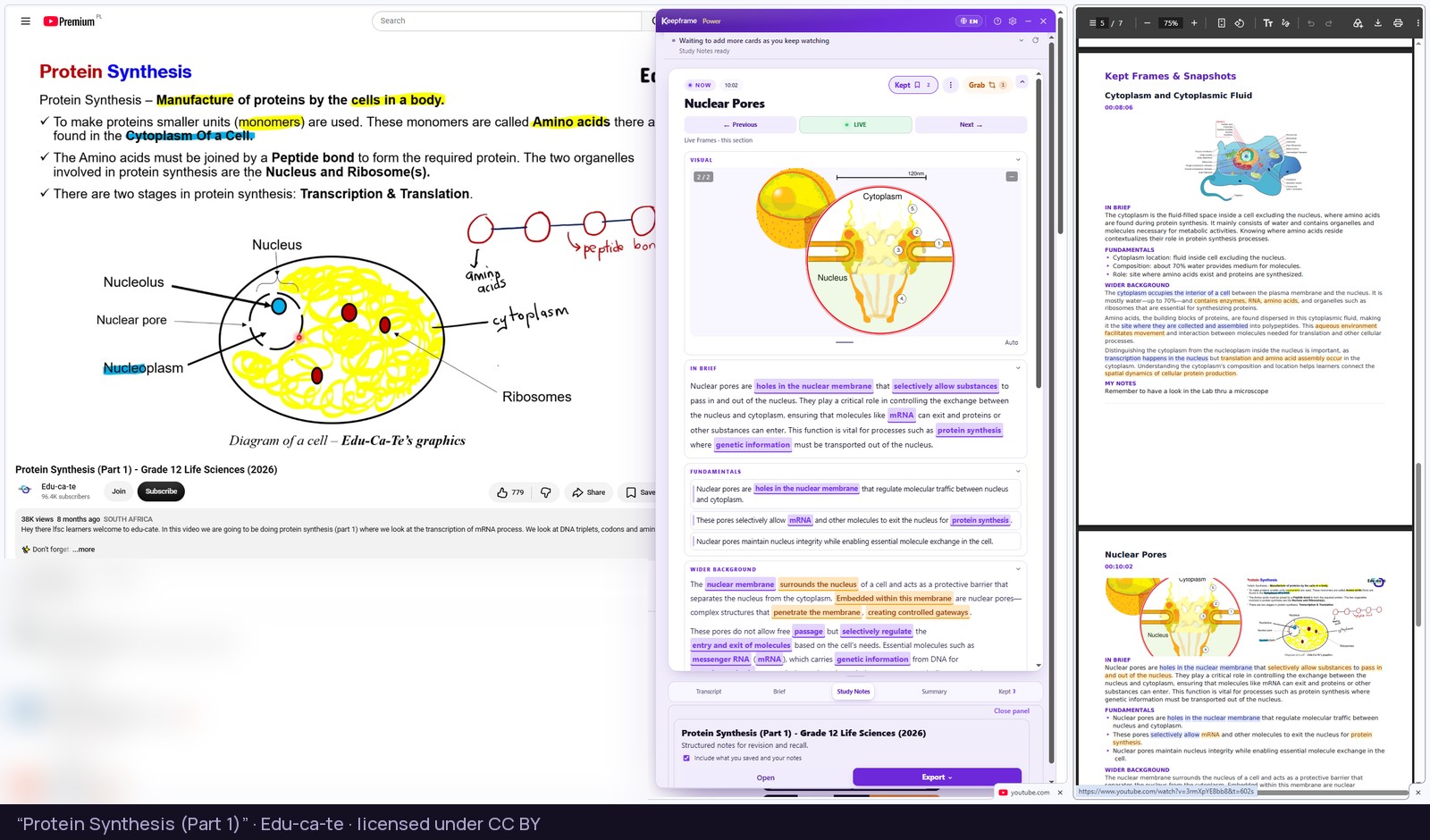
Analyze a video once, then choose: a short Brief, Study Notes for revision, or a Full Summary of the whole thing. While it plays, Live Frames — concept cards beside the video — explain the ideas as they come up.
For desktop Chrome. Works on YouTube videos with captions.
Four steps.
Open the video and pick your language.
Any YouTube video with captions. Choose the language you want the summary in before you analyze.
Press Analyze this video.
The timestamped transcript and your first Live Frames arrive in the panel.
Choose the depth.
Brief for a quick overview, Study Notes for revision and recall, Full Summary for the whole picture.
Export it.
Save the summary as Word or PDF. Timestamps in the file still link back to the moment in the video.
Three depths from one video.
Study Notes — structured notes you can revise from.
Full Summary — the whole argument, section by section.
Transcript — every line with its minute, exportable as text, subtitles or Word.
Before you start.
It needs captions, uploaded by the creator or auto-generated by YouTube.
Pick the output language first; changing it later means analyzing the video again.
Export what you want to keep: documents stay open in the panel until you reload the page or move to another video.
Not sure a long video is worth it? “Should you watch this?” checks before you start and does not use an analysis.
Questions, answered.
How do I summarize a YouTube video?
Open it in desktop Chrome, press Analyze this video, then create a Brief, Study Notes or a Full Summary.
Does it work on long lectures?
Yes, if the video has captions.
Can I read it in my language?
Yes. Choose the language before you analyze; the transcript stays in the language of the video.
Can I export it?
Yes, as Word or PDF.
Is it free?
Keepframe is free to install. Free includes a monthly allowance of video analyses, and creating documents is included in your first days on Free; after that it is part of Pro or Power. See plans.
How to turn a YouTube video into notes →
All questions about Keepframe →
Start with your next video.
Free to install, no card required. Your first 7 days include every document type, within your monthly allowance.
Add to Chrome — FreeFor desktop Chrome. Works on YouTube videos with captions.
Keep it in frame.